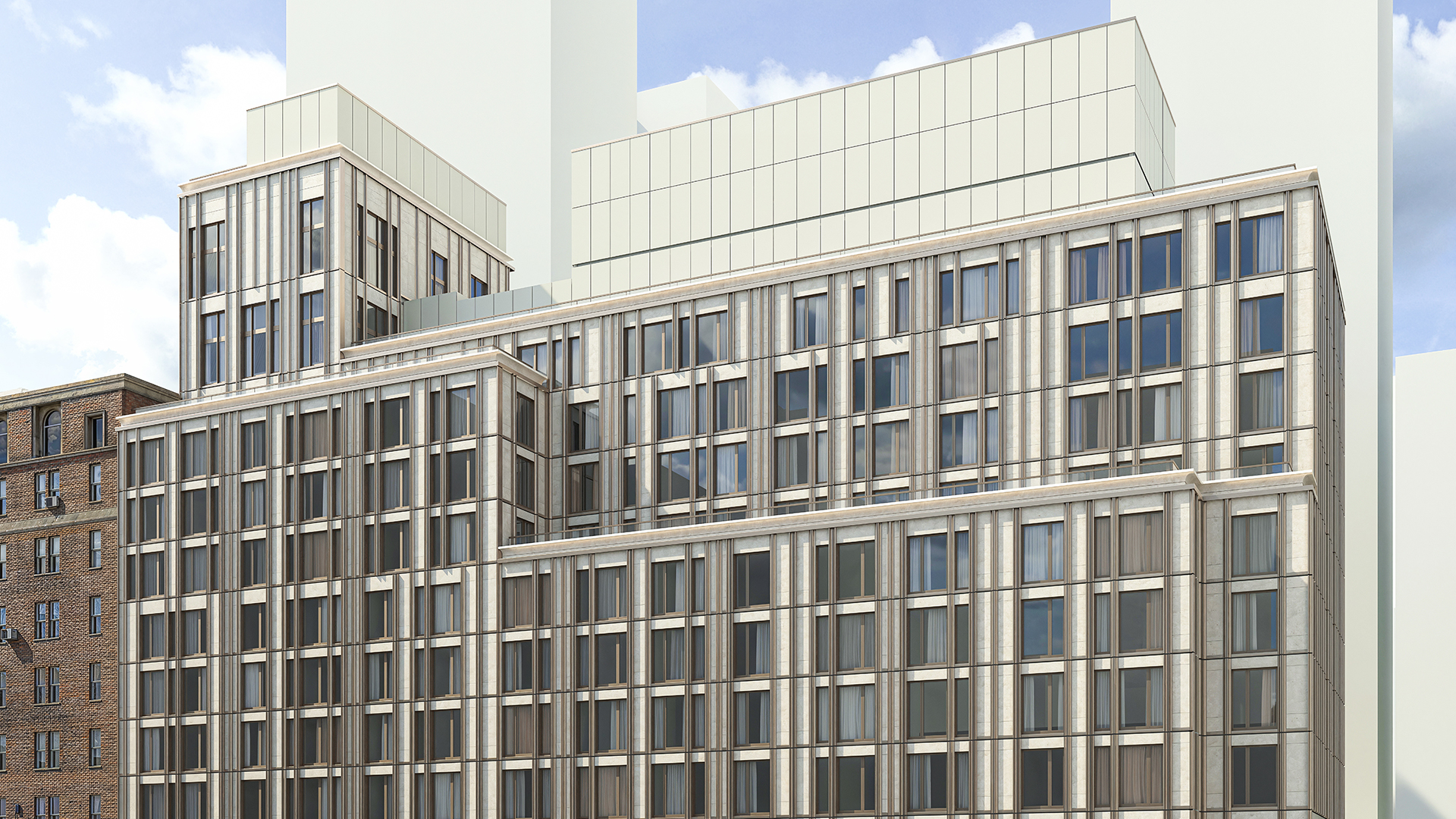


The facade grid defines everything downstream. Panel count, panel area, window-to-wall ratio, schedule totals — all of these are a direct product of how the grid is set up. Get the grid right, and the rest of the model follows. Change the grid repeatedly as the design evolves, and you're either doing a lot of manual work or you're rebuilding.
This article covers how Revit's curtain grid system works natively, where it breaks under iteration, and how Kora Studio's Grid Editor addresses the most common failure point for facade projects that go through multiple design rounds.
How Revit Handles Curtain Grids Natively
Revit's curtain wall grid system gives you two levels of control: type-level settings and instance-level editing.
At the type level, you set the grid pattern for all instances of a curtain wall type. Revit offers four options for both vertical and horizontal directions:
- Fixed Distance — grid lines repeat at a set spacing. Revit places as many as fit within the wall length or height.
- Fixed Number — a specific number of grid lines, distributed evenly regardless of wall size.
- Maximum Spacing — grid lines no further apart than a set distance, adjusted to divide the wall evenly.
- None — no automatic grid; lines added manually after placement.
These type-level patterns work well for regular, repetitive facades where every instance of the wall type uses the same layout. They are set once in Type Properties and apply globally to all instances of that type.
At the instance level, you add, move, or remove individual grid lines after the wall is placed. This is where Revit gives you precision control — and where the limitations begin to show.
For broader context on how curtain walls are modeled in Revit before the grid stage, see How to Model Curtain Wall in Revit.
Adding Grid Lines: The Manual Process
To add grid lines after a curtain wall is placed, use the Curtain Grid tool on the Architecture tab. Revit offers three placement modes:
- All Segments — places a grid line that runs the full width or height of the wall, crossing all existing grid divisions.
- One Segment — places a grid line in a single cell, creating a partial subdivision without affecting adjacent cells.
- All Except Picked — places a grid line everywhere except the cell you click, useful for panels that span two grid heights.
Once placed, a grid line's position is set by typing a dimension value while placing or editing the temporary dimension that appears when the line is selected. There is no persistent dimension field, no formula input, and no way to define the grid module once and have Revit apply it across the wall.
For a facade with 12 vertical grid lines all at 1,500 mm spacing, you place each line and type 1500 for each one. If the module changes to 1,400 mm, you move each line and type 1400. Twelve operations, each one manual.
Type-Level Grid Patterns: What They Can and Can't Do
The Fixed Distance option at the type level does automate this — if you type 1,500 mm in the type properties, Revit places vertical lines at that spacing across every instance of the type. This works cleanly for walls that are an even multiple of the module.
The problem appears at the edges. A wall that is 11,300 mm wide doesn't divide evenly into 1,500 mm panels. Revit will either truncate the last panel (leaving a fractional cell at one end) or it will slightly adjust the spacing to make it fit evenly, depending on the setting. Neither outcome is always correct for a real project, and the result isn't controllable without switching to manual placement.
Maximum Spacing gives Revit permission to adjust the spacing itself so that panels are roughly equal and no larger than the set maximum. This is useful for early massing studies but imprecise for actual facade design where panel dimensions need to be known.
Fixed Number divides the wall into equal panels regardless of size. This is the most predictable of the auto-patterns but also the least useful for panels with specific dimensional constraints — you'd need to back-calculate whether the resulting panel size meets your product requirements.
Why Iterations Break the Grid
The core problem with Revit's native curtain grid is that grid line positions are not parametric. There is no formula governing where each line sits. The positions are stored as static values, and changing them requires direct manual intervention on each line.
In the first pass of a facade design, this is manageable. You set the grid, the panel count is what you expect, and you move forward.
In the second pass — after the structural bay shifts 200 mm, or the facade width is revised, or the panel module changes at the client's request — the grid needs to change. On a complex facade, this can mean repositioning dozens of grid lines. The type-level auto-patterns can partially help, but they lose precision at edges and irregular zones. The practical outcome on many projects is that the curtain wall is deleted and redrawn from scratch, with the grid reconfigured on the new wall.
This is not a bug in Revit. It reflects a fundamental design choice: Revit's curtain wall tool is a general-purpose modeler, not a tool optimized for iterative facade layout. The implications become significant when the same facade goes through five or six design rounds before client sign-off.
Kora Grid Editor: Formula-Driven Dimension Fields
Kora Studio's Grid Editor addresses the iteration problem directly. It operates on the same grid logic as Revit — vertical lines, horizontal lines, cells — but exposes that logic through formula-driven dimension fields rather than individual line placement.
In Kora's Grid Editor, you define the grid module using a formula. Rather than placing lines one by one and typing the same value each time, you set the module once. Kora calculates the resulting cell count and distributes the lines accordingly. When the module changes, you update the formula — and the grid updates across the entire wall.
This is the same underlying logic Revit uses, but presented in a way that makes the relationship between module, wall width, and cell count explicit and editable at the formula level rather than the individual-line level.
The interface is designed to be more direct for the way facade grids are actually designed: start with a module, apply it to the wall, handle the edge conditions. Kora's Grid Editor follows this sequence rather than requiring you to manage each line independently.
Important scope boundaries: Kora's Grid Editor works for unitized curtain wall only. It does not support stick-built systems. It operates at LOD 100 — the output is a schematic-level facade model, not fabrication geometry. Automatic grid pattern generation (where Kora generates the layout without user input) is not currently available; it is on the product roadmap but low priority.
For the full picture of what Kora produces after the grid is set — panels, windows, and schedules — see Kora Studio features or How to Automate Facade Schedules in Revit.
Does Kora Studio Help with Facade Grid Creation?
Yes — specifically for the iteration problem. Kora's Grid Editor replaces manual line-by-line repositioning with formula-driven dimension fields for unitized curtain wall at LOD 100. When the facade module changes, you update the formula once. The grid recalculates without requiring you to manually reposition each line.
If your workflow involves a single-pass facade layout with no anticipated module changes, native Revit curtain grid tools are sufficient. Kora's Grid Editor becomes most valuable when the grid is expected to change — which on design-phase projects is the rule, not the exception.
To see the Grid Editor in context with the full Kora workflow, book a demo.
FAQ
What is a curtain grid in Revit? A curtain grid is the system of horizontal and vertical lines that divide a curtain wall into individual panel cells. Each cell can be assigned a different panel type (vision, spandrel, solid). The grid determines panel count, panel size, and the positions of any embedded windows or doors. Without a grid, a curtain wall is a single unbroken panel.
Can I set curtain grid spacing with a formula in standard Revit? No. Revit's native curtain grid tools accept typed dimension values when placing or moving grid lines, and type-level settings accept a single spacing value. There is no formula input field for grid line positioning in standard Revit. Formula-driven grid dimensions are a feature added by tools like Kora Studio.
Why does changing wall width break my curtain wall grid? When a curtain wall's width changes, Revit adjusts the positions of grid lines proportionally or truncates them at the new boundary — the behavior depends on whether the lines were placed manually or set by a type-level pattern. Either way, the resulting grid may not match your intended module. Manual lines often end up at incorrect positions; type-level patterns recalculate based on the new width but may introduce fractional panels at edges.
What is the difference between Fixed Distance and Maximum Spacing in Revit curtain wall type settings? Fixed Distance places grid lines at exactly the set spacing, repeating as many times as the wall length allows. The last panel may be a different size if the wall doesn't divide evenly. Maximum Spacing adjusts the actual spacing so all panels are equal and no larger than the set value — the real spacing will be less than or equal to the maximum. Maximum Spacing gives more uniform panels but less predictable exact dimensions.
Does Kora Studio support irregular facade grids (non-uniform cell sizes)? Kora's Grid Editor is built for modular, formula-driven grids. Fully irregular grids — where each cell has a unique size with no repeating module — are outside the primary use case. If your facade has a consistent repeating module with edge adjustments, Kora handles this. If every cell has a unique dimension, the standard Revit workflow with manual grid line placement is more appropriate.