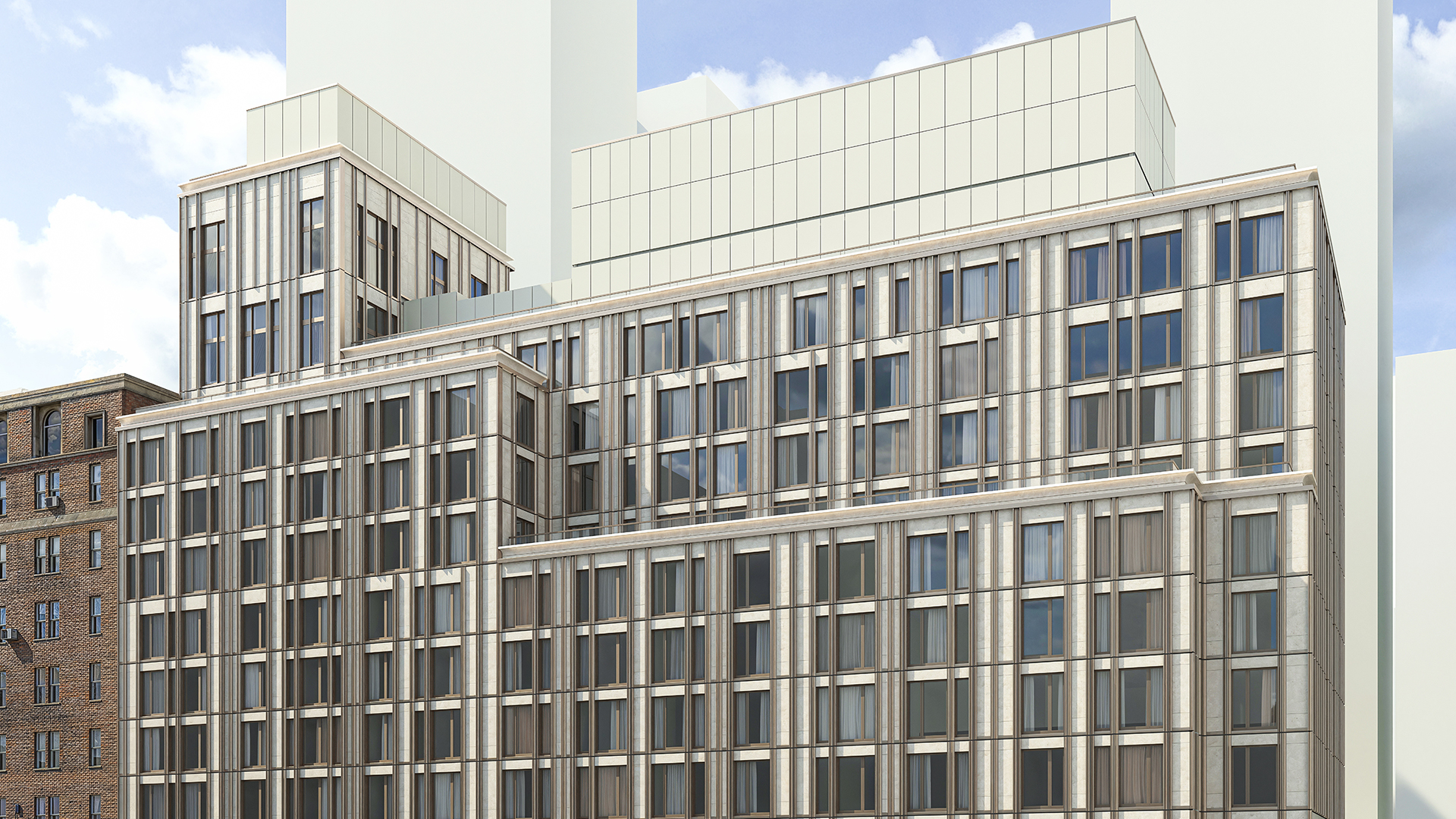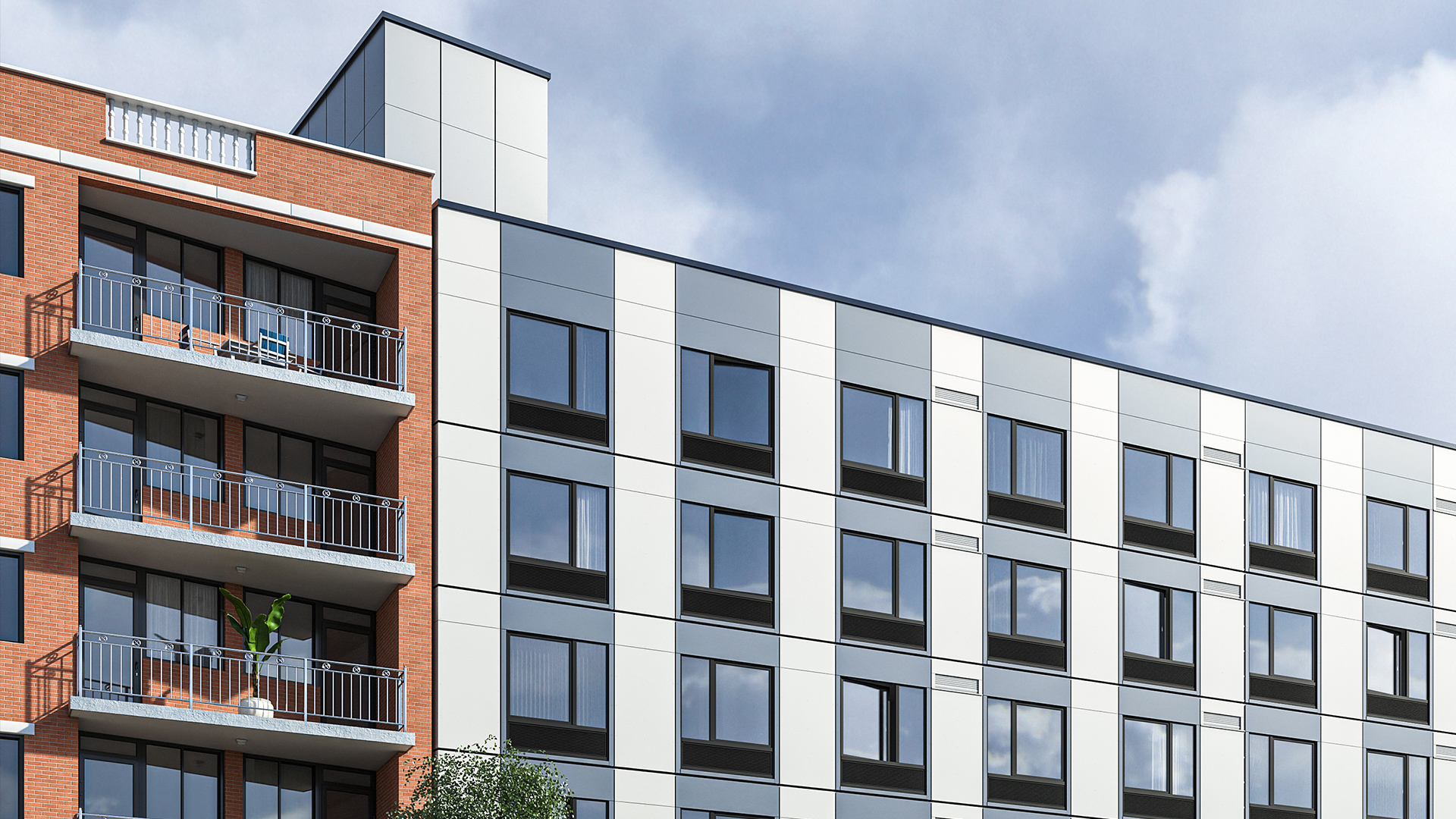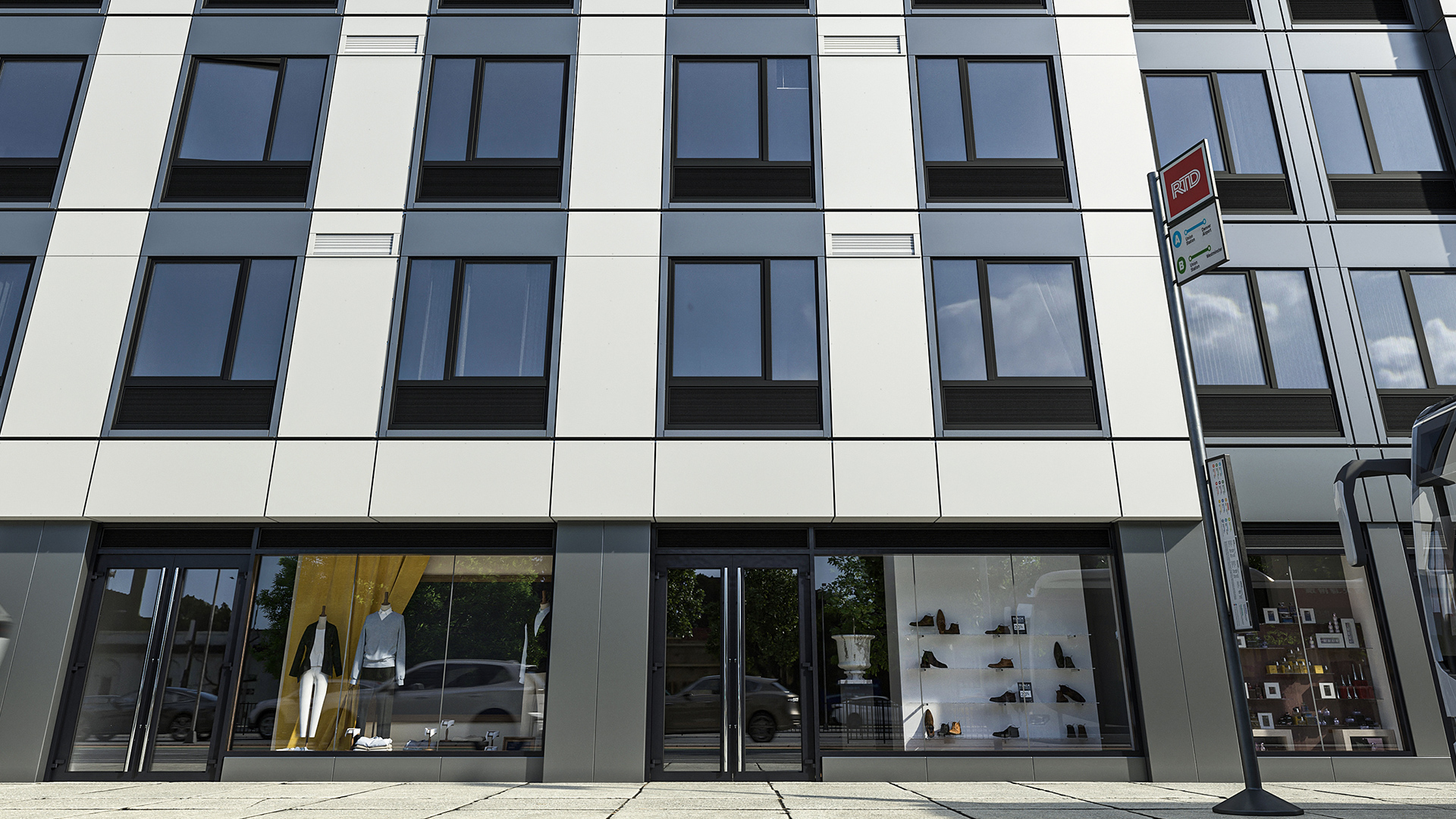
A facade schedule that drifts from the model is worse than no schedule at all. It gives the cost estimator a false panel count, the code reviewer an incorrect window-to-wall ratio, and the project team false confidence in numbers that will be challenged at the next coordination meeting.
Facade schedules in Revit can be accurate and automatic — but only if the families feeding them are built correctly. This article explains what facade schedules need to track, how to set them up in standard Revit, where they break, and how parametric families eliminate the drift problem.
What Facade Schedules Need to Track
A complete facade schedule covers three categories of data:
Panel count and type distribution. How many vision panels, spandrel panels, and solid cladding panels exist on each facade face. The split between types determines the facade's visual character, its performance profile, and a significant portion of the material cost estimate.
Area by panel type. Total glazed area, total opaque area, and total facade area — broken down by orientation where code compliance requires it. These numbers feed directly into window-to-wall ratio (WWR) calculations and preliminary budget estimates.
Light and Air compliance metrics. Window-to-floor ratio (WFR) and window-to-wall ratio (WWR) per room, per facade face, or per floor — depending on the jurisdiction. In New York City, for example, the Zoning Resolution requires a minimum WFR of 10% for habitable rooms, calculated from the glazed area of windows serving that room. For a full explanation of how Light and Air metrics work, see Light and Air Calculations in Facade Design.
How to Set Up Curtain Wall Schedules in Standard Revit
Revit's schedule system can produce facade data, but it requires deliberate setup at the family level before schedules will return useful numbers.
Step 1: Tag panel types consistently. Every curtain panel family in your model needs a Type or panel type parameter with a consistent naming convention — Vision, Spandrel, Solid — populated correctly in every instance. Without this, schedule filters cannot separate panel types, and you get a single undifferentiated count.
Step 2: Build area parameters into families. Revit's curtain panel families do not expose panel area as a built-in schedulable parameter by default. You need to add a shared parameter — typically a formula parameter calculated from panel width multiplied by panel height — and make it available to schedules. This has to be done in the family editor for each panel family type you use.
Step 3: Create the schedule view. In Revit, create a Curtain Panel schedule. Set the filter to group by panel type. Add fields for Type, Count, Area (your shared parameter), and any compliance parameters you've built in. Group and total by Type to get counts and area subtotals per category.
Step 4: Handle WFR and WWR calculations. Window-to-floor ratio requires knowing the floor area of each room the window serves. Window-to-wall ratio requires knowing the total facade area — opaque plus glazed — for each facade face. Neither calculation is available out of the box in a curtain panel schedule. Both require either custom shared parameters with formula-driven values, or manual post-processing in a spreadsheet. Most teams do the latter — which creates the drift problem described below.
Where Manual Facade Schedules Break Down
Manual facade schedules — schedules that depend on parameters manually populated or calculated outside the model — fail in predictable ways as the design evolves.
Parameter drift. When a panel type changes — vision becomes spandrel, a module width adjusts, a floor height revises — the schedule totals update automatically only if the affected parameters are formula-driven inside the family. If the area parameter is manually entered, or if the panel type designation is manually typed per instance, changes do not propagate. The schedule is now wrong, and the error may not be caught until the next review.
Custom family incompatibility. Project teams often build or download curtain panel families that were not set up with scheduling in mind. These families may lack the shared parameters that schedules depend on. Retrofitting shared parameters into families already placed in a model is time-consuming and error-prone — every instance needs to be checked, and families may need to be rebuilt.
WWR and WFR calculated externally. Most Revit teams calculate window-to-wall ratio and window-to-floor ratio in Excel, using area totals exported from Revit schedules. This means every design change requires re-export, re-calculation, and re-review. On a facade that iterates frequently during schematic design, the compliance numbers are typically out of date until someone specifically runs the calculation again.
Orientation-split schedules. Compliance calculations often require area data broken down by compass orientation — north, south, east, west. Standard Revit curtain panel schedules do not automatically tag panels by facade orientation. Getting orientation-split area data requires either a custom shared parameter populated per panel instance, or manual selection and counting — both of which are maintenance burdens that grow with every design change.
Does Kora Studio Automate Facade Schedules?
Yes — through parametric families that feed Revit schedules directly.
Kora Studio generates parametric curtain panel families with formula-driven dimension fields. Panel area, cladding area, and window area are calculated from the geometry of the panel itself — not entered manually. When a grid module changes in the Kora Grid Editor, the panel families update, and the schedule totals update with them. There is no manual re-entry and no export-recalculate cycle.
Light and Air metrics — window-to-wall ratio and the parameters that feed window-to-floor ratio calculations — are built into the parametric family structure. The values Kora's families write into Revit parameters are the values that appear in the schedule. For more on how this works in the compliance context, see Light and Air Calculations in Facade Design.
Kora operates at LOD 100 — schematic design. Its schedules are schematic-design-level data: panel counts and areas accurate enough for preliminary budget conversations, code pre-checks, and early coordination. For fabrication-level quantity takeoffs, LOD 300 models with specific manufacturer families are needed. For a full explanation of what LOD 100 schedules support and what they don't, see What LOD Do Architects Actually Need.
To see Kora Studio's scheduling in a live Revit workflow, book a demo.
FAQ
Can Revit generate a curtain wall schedule automatically? Revit can generate curtain panel schedules, but "automatic" depends on how the panel families are built. If families include formula-driven area parameters and consistent type designations, schedules update as the model changes. If area and type data are entered manually per instance, schedules require manual updates after every design change. The difference is in family setup, not in how the schedule is configured.
How do I get window-to-wall ratio from a Revit schedule? WWR requires two numbers: total glazed area and total facade area (glazed plus opaque). Standard Revit curtain panel schedules can give you both if your panel families have schedulable area parameters broken down by glazed and opaque zones. Most teams that do not use parametric families calculate WWR externally from exported schedule totals — which means the number is only current as of the last export. For the calculation methodology, see Light and Air Calculations in Facade Design.
What is the difference between WFR and WWR? Window-to-floor ratio (WFR) compares glazed window area to the floor area of the room the window serves — a room-level metric used in zoning codes to ensure habitable rooms receive adequate daylight. Window-to-wall ratio (WWR) compares glazed area to total facade area — a facade-level metric used in energy compliance and preliminary performance modeling. Both appear in facade schedules, but they track different things and are calculated at different scales.
Does Kora Studio produce quantity takeoffs? Kora produces LOD 100 schedule data: panel counts, area by type, and Light and Air metrics from the schematic design model. These are accurate for preliminary budget conversations and code pre-checks — not for fabrication-level quantity takeoffs, which require LOD 300 geometry with specific manufacturer families. Kora does not replace the LOD 300 scheduling workflow; it makes the LOD 100 phase produce reliable data instead of placeholder numbers.
Why do facade schedules drift when the design changes? Schedules drift when the data feeding them is entered manually rather than derived from model geometry. If a panel's area is a manually typed value, it does not update when the panel dimensions change. If a panel type is manually designated per instance, it does not update when the grid module reconfigures. Formula-driven parametric families eliminate this by deriving all schedulable values from geometry — so any change to the geometry propagates to the schedule automatically.